
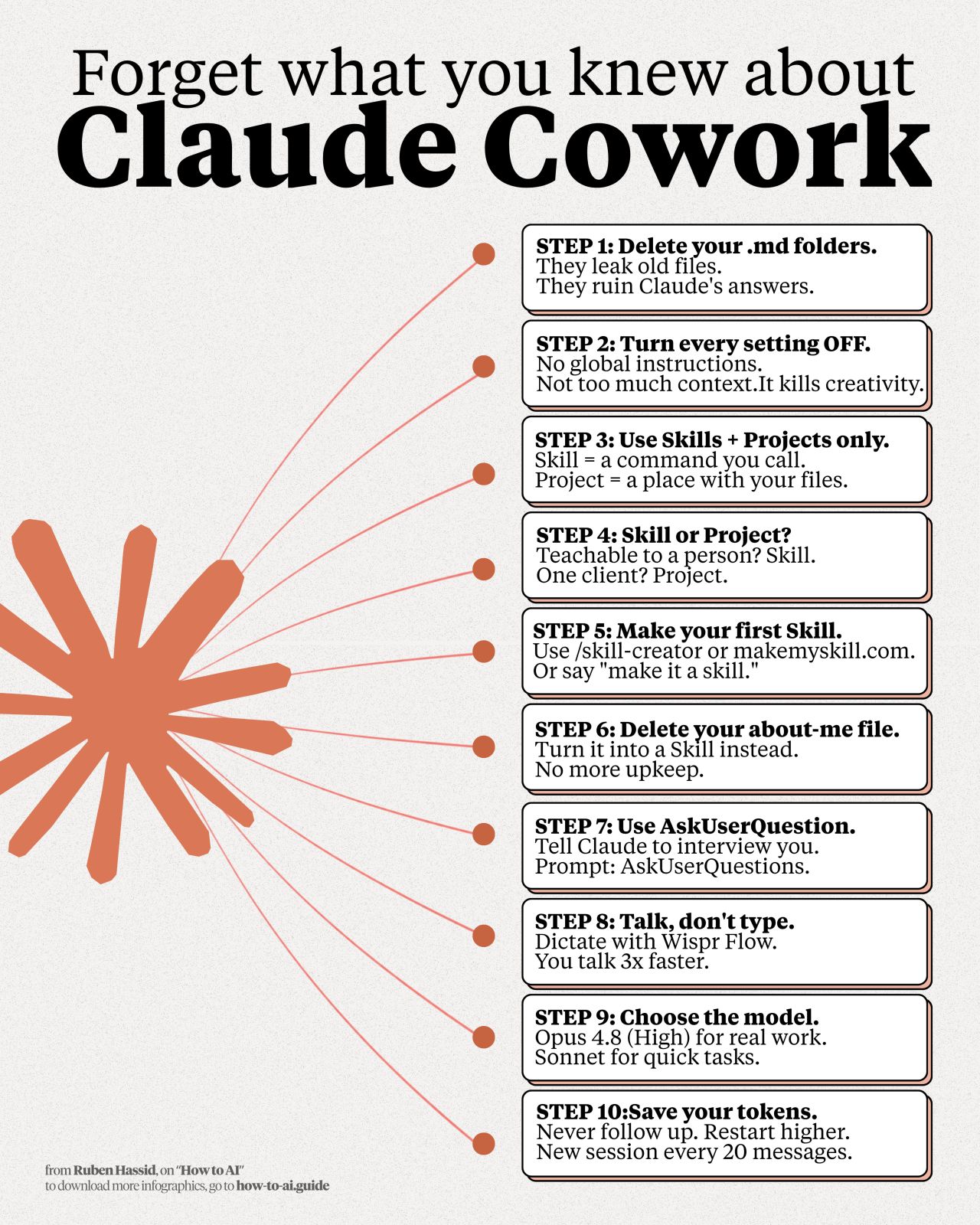
In a recent LinkedIn post, Ruben Hassid shares a counter-intuitive strategy for maximizing productivity with the AI assistant Claude, advocating for a minimalist approach to its settings. Hassid, who has spent 194 days refining his process, argues that a stripped-down Claude configuration leads to more effective and creative output, contrary to the common advice of providing extensive context.
Hassid’s core philosophy revolves around a significant reduction of Claude’s features and settings, which he believes can often hinder rather than help. He highlights several elements he has removed from his setup:
“Delete: The folder system. Even when I prompt ‘don’t check my output folder,’ Claude still checked & poisoned fresh answers with outdated work.”
This deletion of the folder system, according to Hassid, prevents the AI from being influenced by old or irrelevant information, ensuring that fresh inputs lead to genuinely new outputs. He also points out the removal of the ‘about-me’ file, suggesting it be converted into a skill that can be invoked only when necessary. This, Hassid explains, reduces the weekly upkeep and keeps the AI focused.
Rethinking Context and Global Instructions
Hassid challenges the prevailing notion that more context is always better when interacting with AI. He argues that excessive global instructions can lead to repetitive and uninspired answers.
“Everyone says ‘give AI more context.’ Too much context and Claude gives the same answer every single time. Works for contracts. Ceiling for ideas.”
As Hassid notes, while broad context might be suitable for tasks requiring strict adherence to specific information, like legal contracts, it limits the AI’s potential for ideation and creative problem-solving. He advocates for a more selective approach, invoking context only when it serves a specific purpose.
Streamlining Prompts and Settings
Further simplifying his Claude setup, Hassid has eliminated prompt templates and turned off various settings he deemed unnecessary. He suggests transforming repetitive prompts into reusable “skills” that can be accessed via commands.
“Delete: The same prompt templates. Turn the copy-paste prompt into a skill. Three ways: /skill-creator, or type ‘make it a skill’ in any chat.”
This method, Hassid explains, allows for quick access to frequently used functionalities without cluttering the interface or the AI’s immediate processing. He also mentions switching off all settings he could disable, keeping only essential connectors like Gmail and Granola.
The ‘Empty’ Claude System: Skills and Projects
Hassid’s optimized system relies on just two primary features: Claude Skills and Projects.
Claude Skills
These are commands initiated with a forward slash (/). Hassid’s personal ‘about-me’ information, for instance, is now managed as a skill, invoked only when relevant. His guiding principle is simple: if a prompt needs to be written more than once, it should be converted into a skill.
Projects
For client-specific work, Hassid utilizes a ‘Projects’ feature, dedicating one project per client. Chats within a project are self-contained, remembering all interactions, emails, and past campaigns without leaking information into other unrelated chats. This ensures data privacy and context integrity.
Hassid offers his Claude Skills library for free download via his website, how-to-ai.guide, requiring a free subscription and opening his welcome email to access a Notion library. He specifically recommends trying his ‘/linkedin-post-hook’ skill, which he credits with generating a significant portion of his post hooks.
📝 About This Content
This article is based on insights shared by Ruben Hassid on LinkedIn.
📅 Originally posted on July 3, 2026 | View original post on LinkedIn →